

Connection with pgAdmin
pgAdmin is the official open-source administration and management tool for PostgreSQL. This quickstart shows how to connect it to a Sliplane database.
Before you start
Section titled “Before you start”Open your database in the Sliplane dashboard and keep its connection details handy. You will need the host, port, database name, user, and password.
Connect
Section titled “Connect”-
Open pgAdmin and, in the left Browser panel, click Servers, then click Add New Server in the main panel.
-
On the General tab, enter a Name for the connection (for example, your database name).
-
Switch to the Connection tab and fill in:
- Host name/address — the host from the dashboard
- Port — the port from the dashboard
- Maintenance database — the database from the dashboard
- Username — the user from the dashboard
- Password — the password from the dashboard
-
Optionally enable Save password.
-
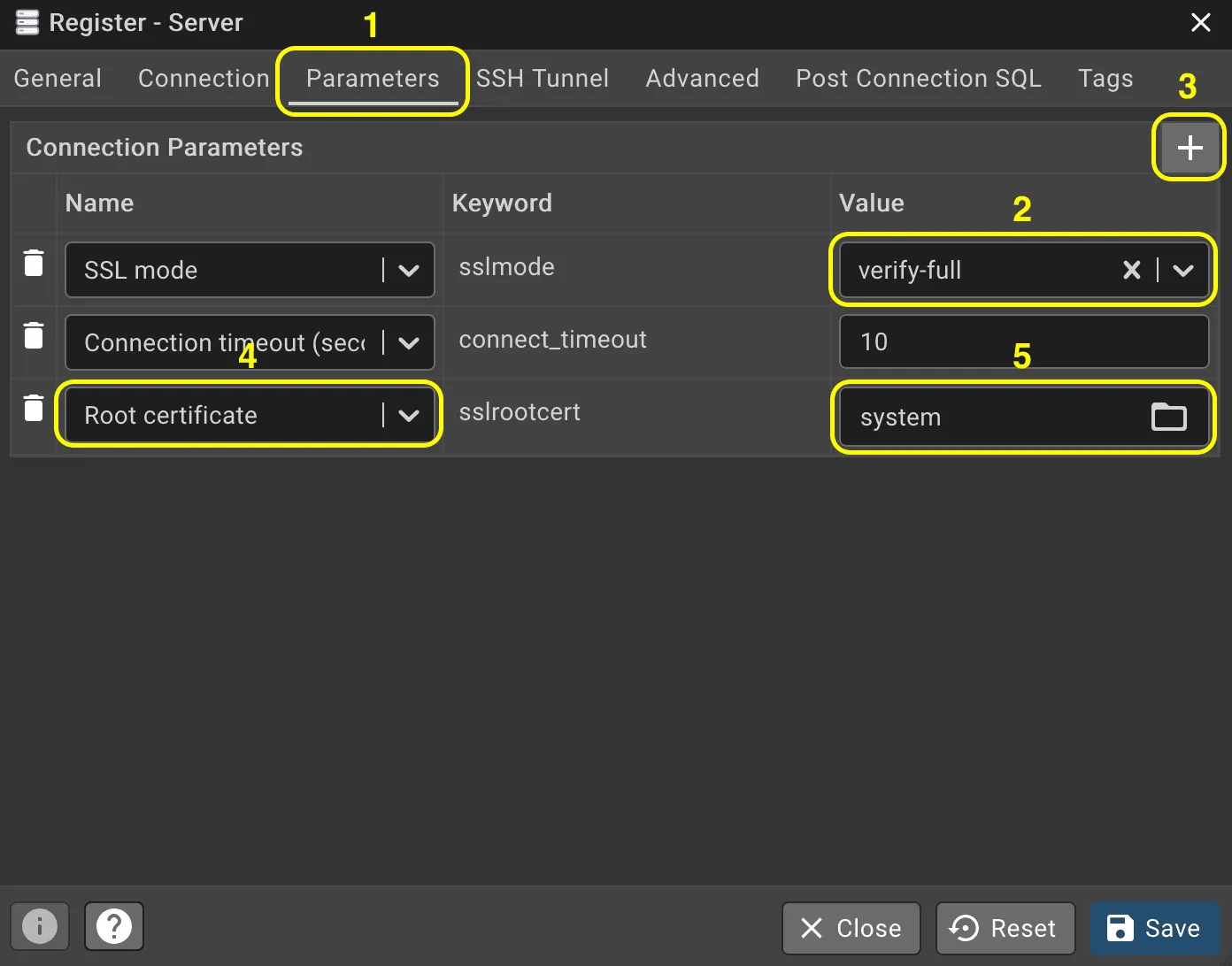
Switch to the Parameters tab, and:
- Set SSL mode to verify-full
- Add a new parameter Root Certificate (
sslrootcert) with valuesystem
-
Click Save. pgAdmin connects and shows your database in the Browser panel.
You can now browse tables, run queries with the Query Tool, and manage your database from pgAdmin.