

Connection with CloudBeaver
CloudBeaver is a browser-based database client from the makers of DBeaver. This quickstart shows how to connect it to a Sliplane database.
Before you start
Section titled “Before you start”Open your database in the Sliplane dashboard and keep its connection details handy. You will need the host, port, database name, user, and password.
Connect
Section titled “Connect”-
Open CloudBeaver and log in. Click the New Connection button, then choose PostgreSQL.
-
Fill in the connection settings:
- Host - the host from the dashboard
- Port - the port from the dashboard
- Database - the database from the dashboard
- Username - the user from the dashboard
- Password - the password from the dashboard
-
Open the SSL settings, enable SSL, set the SSL Mode to verify-full, and set the SSL Factory to
org.postgresql.ssl.DefaultJavaSSLFactoryso the driver validates our certificate against the JVM’s trusted CAs.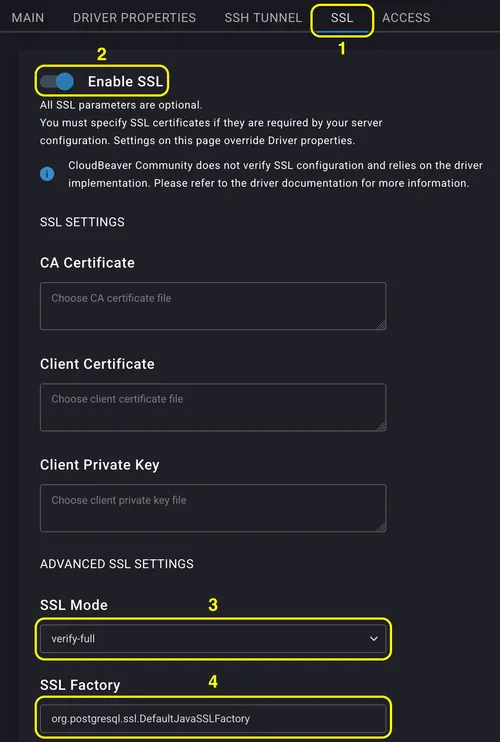
-
Click Test to confirm the details are correct.
-
Click Create. Your database appears in the navigator.
You can now browse schemas, run SQL, and manage your data from CloudBeaver.