

Networking & security
Twingate
Set up Twingate to access your private Sliplane services through a zero-trust network.
Twingate is a zero-trust network access solution. Once configured, you can access your private Sliplane services using their internal hostnames from any device connected to your Twingate network.
Prerequisites
- A Twingate account
- A Sliplane server with private services you want to access
Step 1: Add a Resource
- Log in to your Twingate admin console
- Add a new Resource
- Set the address to
*.internal
Step 2: Deploy the Connector on Sliplane
- In the Twingate dashboard, go to Deploy another Connector
- Select Docker
- Keep the default settings
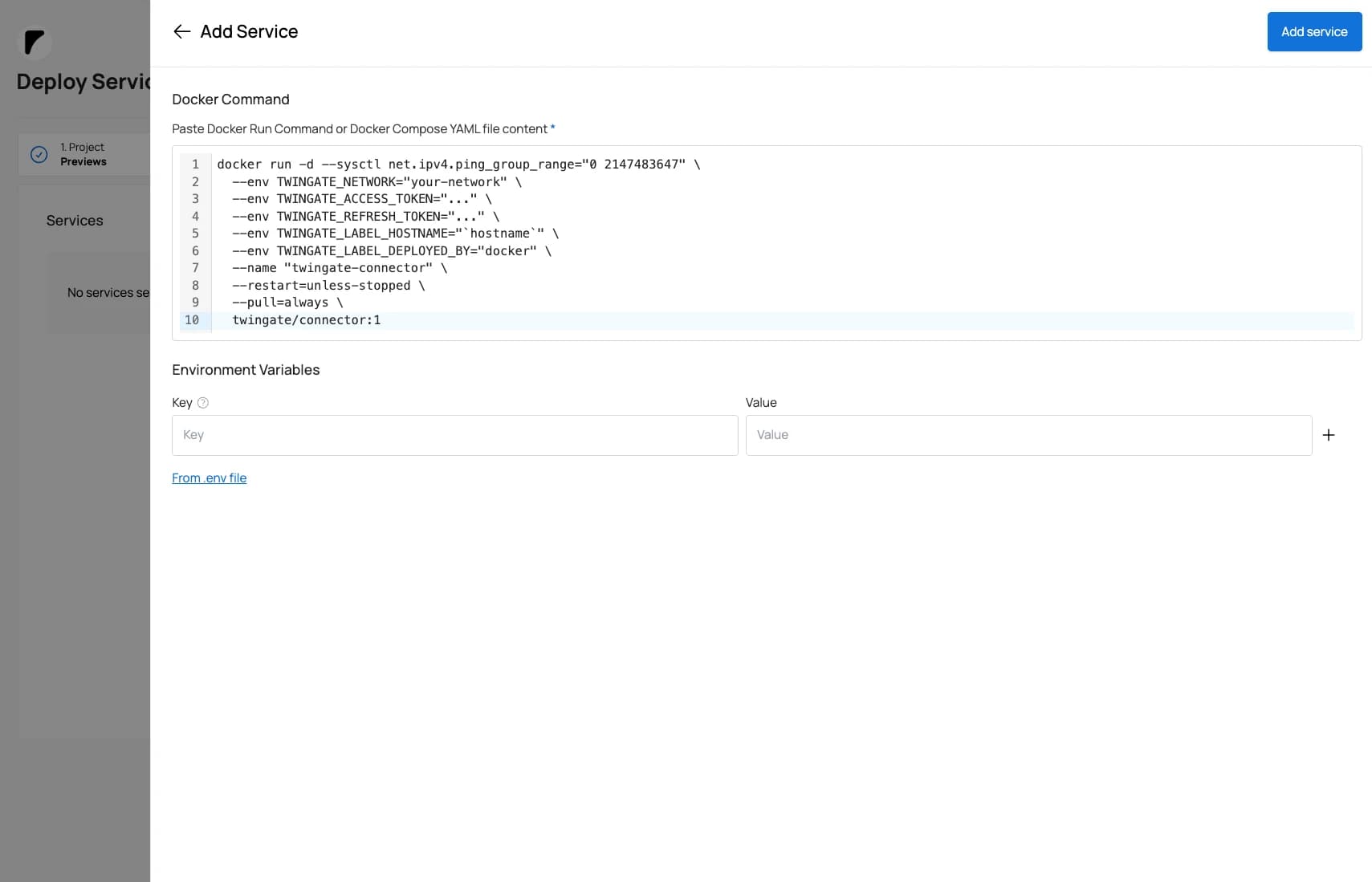
- Copy the generated Docker command
You'll get a command like this:
docker run -d --sysctl net.ipv4.ping_group_range="0 2147483647" \
  --env TWINGATE_NETWORK="your-network" \
  --env TWINGATE_ACCESS_TOKEN="..." \
  --env TWINGATE_REFRESH_TOKEN="..." \
  --env TWINGATE_LABEL_HOSTNAME="hostname" \
  --env TWINGATE_LABEL_DEPLOYED_BY="docker" \
  --name "twingate-connector" \
  --restart=unless-stopped \
  --pull=always \
  twingate/connector:1
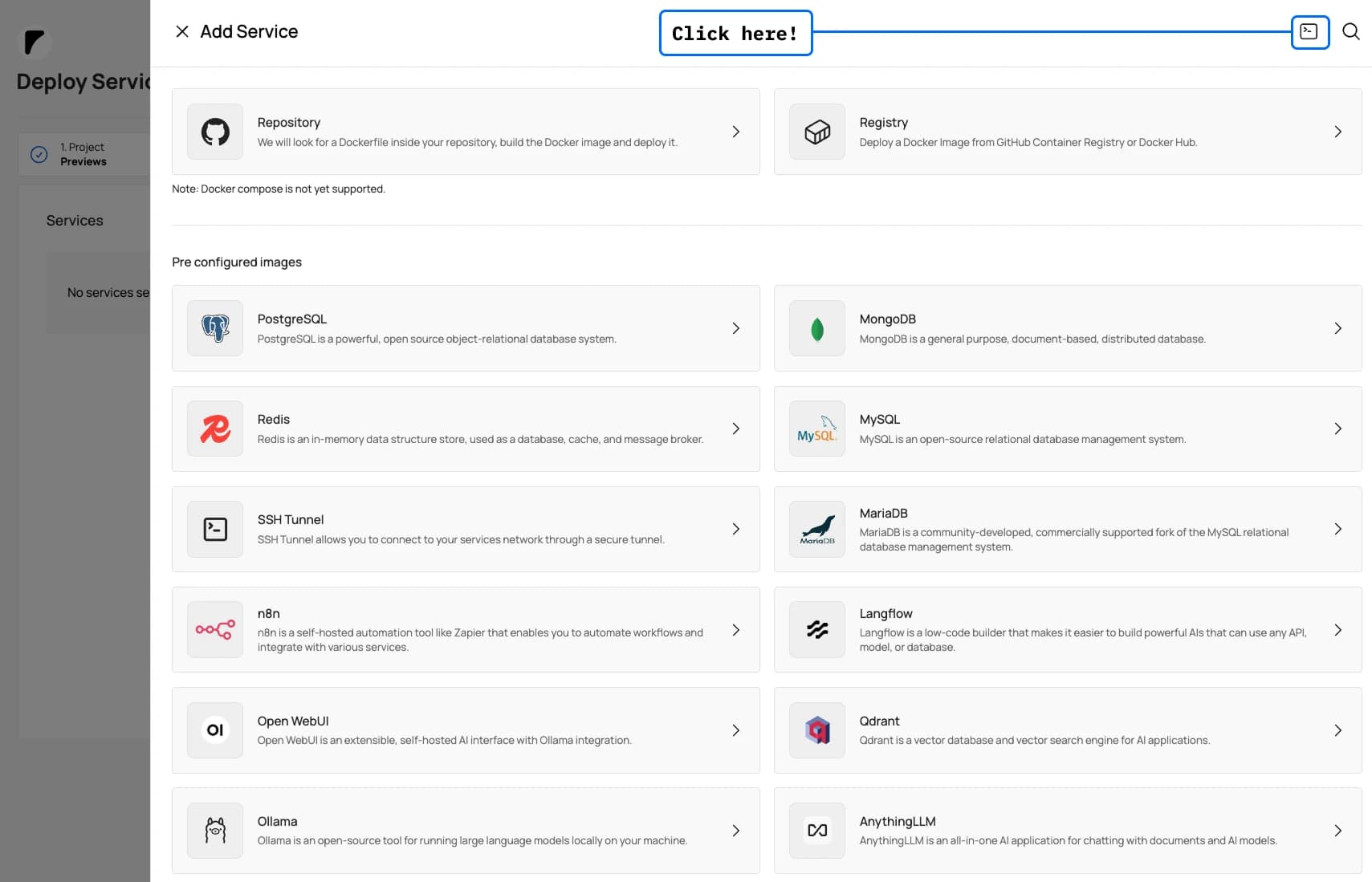
In Sliplane, you can paste this command directly when creating a new service — Sliplane will parse it and configure the service automatically.
| Setting | Value |
|---|---|
| Image | twingate/connector:1 |
| Network | Private (no public access) |
Step 3: Connect Your Local Device
- Install the Twingate client on your local machine
- Log in to your Twingate network
Step 4: Access Your Private Services
Once connected, you can access any private service using its internal hostname:
curl http://my-service.internalTroubleshooting
Service not reachable:
- Ensure the Twingate connector is running on Sliplane
- Check that your local device is connected to Twingate
- Verify the
*.internalresource is configured in Twingate
Connector not connecting:
- Verify your access and refresh tokens are correct
- Check the service logs in Sliplane
How is this guide?