

Networking & security
NetBird
Set up NetBird to access your private Sliplane services through a secure mesh VPN.
NetBird is an open-source peer-to-peer mesh VPN. Once configured, you can access your private Sliplane services using their internal hostnames from any device connected to your NetBird network.
Prerequisites
- A NetBird account
- A Sliplane server with services you want to make private
Step 1: Get Your NetBird Setup Key
- Log in to NetBird
- Go to Setup Keys in the left menu
- Create a new setup key or copy an existing one
Step 2: Deploy NetBird on Sliplane
Create a new service with the following configuration:
| Setting | Value |
|---|---|
| Image | docker.io/netbirdio/netbird:latest |
| Network | Private (no public access) |
Add these environment variables:
| Variable | Value | Description |
|---|---|---|
NB_SETUP_KEY | Your setup key from Step 1 | Used for automatic registration |
NB_HOSTNAME | routing-peer | The internal name for this peer |
NB_USE_NETSTACK_MODE | true | Required - Enables userspace networking |
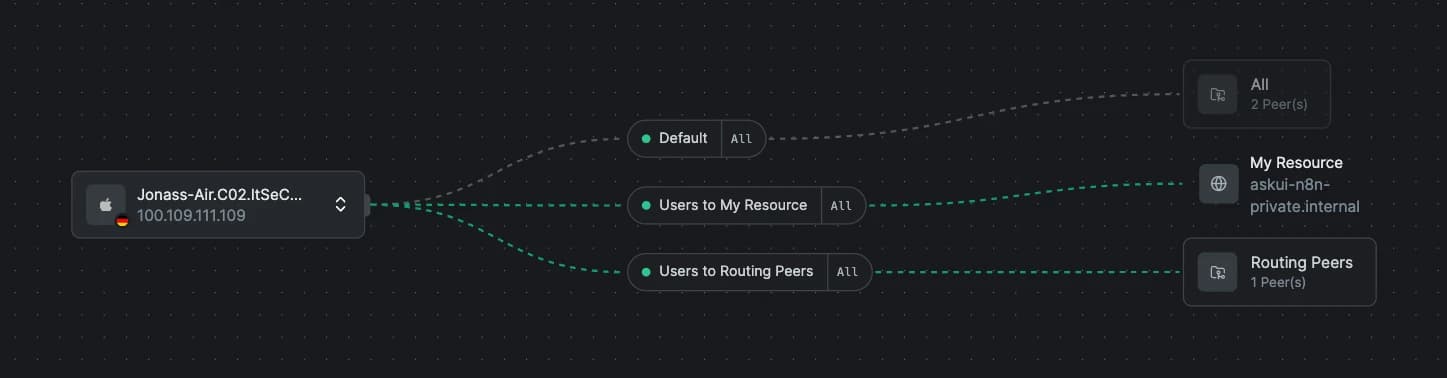
Step 3: Configure Network Resources
- Go to app.netbird.io/networks
- Select your network
- Click Add Resource
- Set the address to
*.internal
You may also need to add this resource to your Access Policies to allow traffic from your devices.
Step 4: Connect Your Local Device
- Install the NetBird client on your local machine
- Log in to your NetBird account
- Your device will automatically connect to the mesh network
Step 5: Access Your Private Services
Once connected, you can access any private service using its internal hostname:
curl http://my-service.internal:3000Replace the hostname and port with those of your HTTP service.
Troubleshooting
Service not reachable:
- Ensure the NetBird service is running on Sliplane
- Check that your local device is connected to NetBird
- Verify the
*.internalresource is configured in NetBird
NetBird container not starting:
- Make sure
NB_USE_NETSTACK_MODEis set totrue - Verify your setup key is valid and not expired
How is this guide?